Linux Intro and Command-Line Basics
Intro
The Linux command line uses a variety of flavors of 'Unix', an operating system first developed in the 1960s. In general, the unix command format is as follows:
command argument1 argument2 --option1name option1value ...
E.g, you can use the --help option, which nearly every command has, to query the usage for the copy command, cp, with:
cp --help
You can think of every command like a shortcut - the actual functionality of the command is located in code elsewhere from your 'current location' on DynoSparky - but by evoking its name you request that code to be executed. If you are entirely new to Unix, you may find Andrew Jahn's Unix for Neuroimagers to be an extremely comprehensive resource. "This will be a new language to you, and as with any language, the beginning can be disorienting and overwhelming at times; however, stick with it, and I promise that the fog will begin to clear eventually, and you will discern what exactly it is you need to know when searching the help manuals, and what it is that you can disregard."
Cheat Sheet
| Command | Description |
|---|---|
ls |
Lists all files and directories in the present working directory |
ls -a |
Lists hidden files as well |
ls -l |
Lists vertically with detailed information |
ls -la |
You can combine flags like so! |
ls -l * |
List each subfolder in a directory |
ls -d /path/to/files/sub-*/ses-*/func |
List the relative paths of all of the matching folders |
cd ~ |
Navigate to $HOME directory |
cd .. |
Navigate one level up |
cd <path> |
Navigate to |
pwd |
Prints the full path of the current directory |
cat <file> |
Prints the contents of a file |
mv <source> <destination> |
Move a source file or rename to destination |
cp <source> <destination> |
Copy a source file to destination |
cp -r <source> <destination> |
Copy a source folder to a destination |
rm <file> |
Permanently delete a file |
rm -r <folder> |
Permanently delete a folder |
sudo |
Placing 'sudo' in front of a command is like running as administrator |
clear |
Clears the terminal window |
echo $VARIABLE |
Displays value of variable |
ssh -Y user@remoteaddress |
Connect remotely to a server via secure shell |
ssh -X -Y user@remoteaddress |
Start SSH connection with X11 forwarding (graphical applications run locally) |
touch <filename> |
Create an empty file, at |
echo "sometext" |
Print "sometext" to standard output |
echo "sometext" >> <filename> |
Append "sometext" to file |
echo "sometext" > <filename> |
Write "sometext" from scratch to file |
nano <filename> |
Edit a file in the nano text editor |
vim <filename> |
Edit a file in the vim text editor |
grep "filterkey" |
Filters a standard output for lines containing "filterkey" |
CTRL-c |
Stop current command |
These are just a few and some of the most powerful / common of many built-in commands.
Software Environment
C Shell Configuration File
.cshrc is a file that is executed each time you execute a new shell (i.e., each time you log in, open a new Remote Desktop session or Xterm window). .cshrc Docs
You can take advantage of .cshrc to built yourself shortcuts, aliases, and set up user configurations.
E.g., if you're constantly using the command ls -l instead of regular ls, and it's becoming tedious to type in, you can add a line in your .cshrc which builds an alias for you:
alias l 'ls -l'
Then after either relaunching a session, or running source ~/.cshrc to load the file, you can use l in lieu of ls -l.
Virtual Environments
venv
One important environment we make use of in the LCBD is venv. Like other systems, such as anaconda, a virtual env
anaconda
Docker
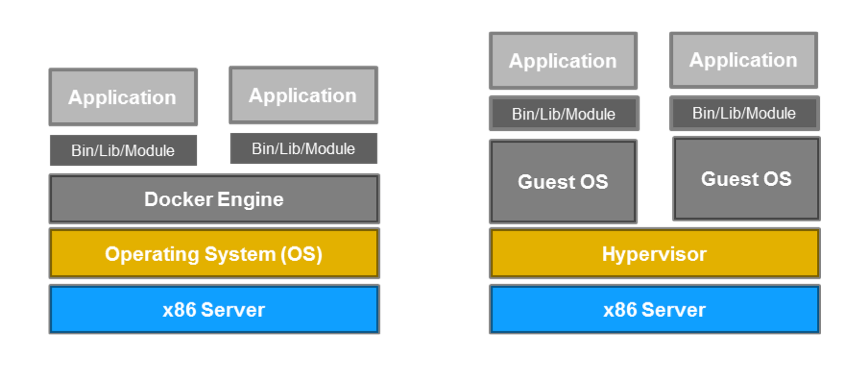
Docker is a software we have access to on DynoSparky, which allows us to build, run, and store "containers". Many software for data analysis are offered via Docker containers, which are packaged applications that make the execution of the software much more straightforward and consistent.
For example, when the latest releases of MRIQC, FMRIPREP, and LCBD scripts all rely on different versions of the PyDicom package, a Docker container works as a solution. In the figure below, Docker containers are represented on the left, and virutal machines on the right.